
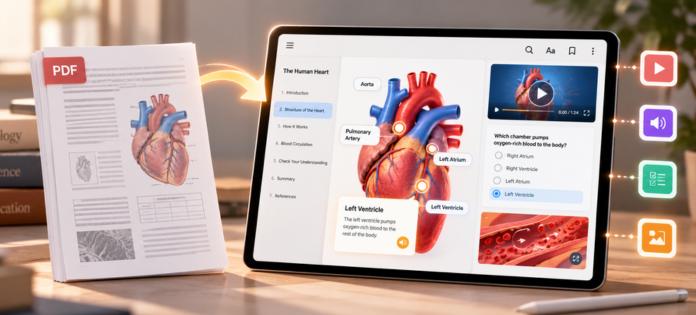
How to Turn a PDF into an Interactive eBook

PDF files are convenient for sharing educational content. A textbook can be exported, emailed, uploaded to a website or sent to a printer without much difficulty. The challenge comes when a publisher wants the file to support digital reading, working navigation and interactive elements
A PDF contains information about how content appears on a page. An interactive eBook also needs a structure that describes headings, reading order, links and other elements. How well the original file is prepared can make a considerable difference to the conversion process.
For educational publishers, understanding these details helps prevent formatting errors, reduce rework and maintain the quality of the original material.
Start by Identifying What Your PDF Contains
Before choosing a conversion tool, establish how the PDF was created. A digitally generated PDF usually contains selectable text and embedded fonts. A scanned PDF may consist primarily of page images. Some textbooks contain a mixture of both, especially when older diagrams, handwritten annotations or scanned illustrations have been included. This distinction affects the next steps.
For scanned pages, optical character recognition (OCR) can extract text from images. However, OCR results need checking. Mathematical symbols, superscripts, scientific notation and similar-looking characters can be misread. In an examination workbook, even one incorrect symbol can change the meaning of a question.
Check a few representative pages before processing the entire file. Include pages with tables, equations, multiple columns and image-heavy layouts. These are often more difficult to convert accurately.
Clean Up the Content Before Conversion
A PDF may look perfectly organised on screen while containing structural problems underneath. For example, a chapter title might be stored as ordinary text instead of a heading. A multi-column page might extract in the wrong reading order. Page numbers, running headers and footers can become mixed into the main text.
These issues become more noticeable when content is moved into a format that rearranges text according to screen size.
Review the extracted text and correct problems such as:
• Headings appearing in the wrong order
• Words split incorrectly across lines
• Repeated page numbers appearing inside paragraphs
• Tables losing their row and column relationships
• Special characters, symbols or punctuation changing during extraction
Keep a copy of the original PDF and compare the converted content against it. This makes it easier to spot errors before they spread across the publication.
Choose an eBook Format That Fits the Publication
The intended reading experience should guide the format choice. EPUB is widely used for digital books and supports structured content, navigation and adaptable text layouts. PDF preserves a fixed page design, which can be useful for materials where precise positioning matters.
Educational publishers need to consider the type of content involved. A novel with straightforward text has different requirements from a mathematics textbook filled with equations, diagrams and carefully arranged exercises.
The EPUB 3.3 specification published by the World Wide Web Consortium (W3C) provides a standard for structured digital publications. Its capabilities include support for web-based content and media. The exact interactive functions available to readers still depend on how the publication is built and which reading system is used.
Before conversion, confirm that the target format supports the publication’s essential content and the devices on which readers will access it.
Rebuild Navigation and Internal Links
Navigation is one of the details that can get overlooked during conversion. In a printed book, readers use page numbers, chapter headings and the index to find information. A digital publication needs working navigation that lets readers move through the content efficiently.
Create a logical heading hierarchy and use it to generate the table of contents. Check that chapter links lead to the correct sections and that references to figures, exercises or appendices point to the right locations.
Internal links deserve particular attention in educational books. A question might refer students to a diagram several sections earlier, or an answer key might direct them back to a particular exercise. Broken links can make these resources frustrating to use.
Test the links in the actual output file, not just in the authoring tool. A link that works during editing may behave differently after export.
Add Interactive Functions to the Converted Publication
Once the content structure is reliable, the team can add the interactions required by the publication. The best starting point is a clear production specification. List each planned interaction, where it belongs and how it should behave. For example, a multiple-choice question needs selectable answers, a defined correct answer and appropriate feedback. A linked reference needs a reliable destination.
If the project includes audio or video, check the media files, playback controls and compatibility with the intended reading systems. Avoid relying on a feature simply because it appears in the editing interface; confirm that it works in the exported publication.
For larger publishing teams, a repeatable authoring workflow can make these tasks easier to manage across multiple titles. Platforms designed for educational publishing can help teams work with existing PDF or ePub content and develop interactive learning materials within a structured process.
Test the Finished eBook on Real Devices
A successful export is only one stage of quality assurance. Open the finished file in the reading applications and on the devices your audience is likely to use. Review the publication from beginning to end, paying special attention to pages that were difficult to convert.
Check that:
• Text, equations and diagrams display correctly.
• Headings and the table of contents follow the correct order.
• Links and interactive controls work as intended.
• Images remain clear at different screen sizes.
• Audio and video play correctly where included.
• The content remains readable when users adjust text settings, where supported.
Accessibility should be part of this review. Check reading order, meaningful image descriptions, keyboard access where applicable, and alternatives for essential audio or video content. Automated validation tools can identify some technical issues, but manual testing remains important for educational accuracy and usability.